AI Assistants (MCP)
Run LoadFocus from your AI assistant (MCP)
The LoadFocus MCP server lets an AI assistant such as Claude operate your LoadFocus account directly. You ask in plain language ("load test my checkout page from Europe", "set up an API monitor for this endpoint", "how did my Core Web Vitals trend this week?") and the assistant uses LoadFocus tools to create tests, run them, read results, and report back.
It works across every LoadFocus service through a single connection:
- Cloud, k6 and JMeter load testing (
loadfocus.com/load-testing) - Page Speed monitoring with Lighthouse and Core Web Vitals (
loadfocus.com/page-speed-monitoring) - API monitoring with scheduled checks, assertions and alerts (
loadfocus.com/api-monitoring)
Everything runs inside your account and your active team, with your plan limits enforced by the LoadFocus backend exactly as they are in the dashboard. The assistant cannot do anything you could not do yourself in the UI.
What is MCP?
The Model Context Protocol (MCP) is an open standard that lets AI assistants connect to external tools and data. LoadFocus exposes its platform as an MCP server, so any MCP-capable client (Claude Desktop, the Claude web connectors, and other MCP clients) can call LoadFocus tools on your behalf once you authorize it.
- Server URL:
https://mcp.loadfocus.com/api - Sign-in: your normal LoadFocus account (OAuth)
- Scope of access: the team you are currently working in
Connect your assistant
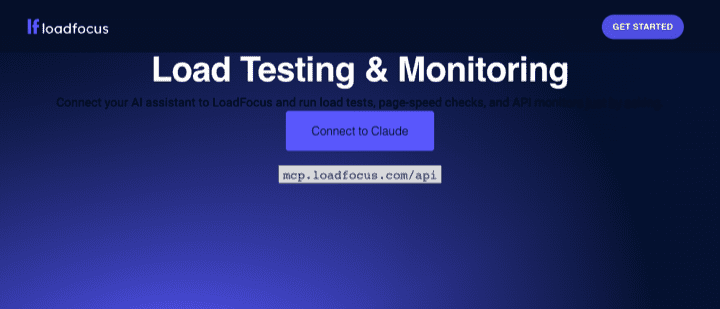
You can connect in two ways: an interactive OAuth sign-in (best for Claude), or an API key (best for scripts).
Option A: OAuth (recommended, for Claude and interactive clients)
This is the easiest path and never exposes a long-lived key.
In your MCP client, add a custom connector / MCP server with the URL:
https://mcp.loadfocus.com/apiThe client opens a LoadFocus sign-in page. Log in with your normal LoadFocus account.
Review and approve the access request. LoadFocus asks for:
- Read access (
mcp:read) so the assistant can list and read your tests, monitors and results. - Write access (
mcp:write) so it can create and run tests and monitors when you ask.
- Read access (
You are returned to your client and the LoadFocus tools become available.
The connection uses standard OAuth 2.0 with PKCE. Access tokens last 30 days and refresh automatically, so you only sign in occasionally. You can revoke a connection at any time from your LoadFocus account.
Option B: API key (for scripts and non-interactive clients)
If your MCP client supports a bearer token instead of an interactive login, you can authenticate with a LoadFocus API key.
Create or copy an API key from
loadfocus.com/account/api-keys.Configure your client to send the header:
Authorization: Bearer YOUR_LOADFOCUS_API_KEYTo target a specific team, also send a
Team-Idheader with the team id. Without it, your default team is used.
An API key grants full read and write access, so treat it like a password.
Plans: what is free and what needs an upgrade
The MCP server respects the same plan rules as the dashboard:
- Free plans can create and run cloud URL load tests, browse results, and use the read tools, Page Speed and API monitoring features within their normal limits.
- Running k6 and JMeter tests requires a paid plan. Creating (storing) k6/JMeter tests works on any plan, within your normal limits.
- AI test analysis consumes AI credits from your plan.
- Page Speed checks and other usage are capped per plan. Ask the assistant to "check my plan limits" at any time.
When a tool needs a higher plan, it returns a clear upgrade_required message rather than failing silently.
Tools available
Tools are grouped by service below. Read tools are safe to call anytime. Write tools change your account (create, run, delete), and a few are marked costs money (they start a real test or check) or destructive (they delete data permanently).
Account and discovery
| Tool | What it does |
|---|---|
mcp_probe | Quick connectivity check that confirms the server can see your account and active team. |
search_tools | Search the tool catalog by keyword, category or intent. Useful for finding the right tool. |
list_teams | List the teams you belong to, with the active one marked. |
set_current_team | Switch the active team for following actions. |
get_plan | Show your plan and account status. |
get_plan_limits | Show current usage and remaining quota (Page Speed usage and AI credits). |
get_ai_credits | Show your AI analysis credit balance. |
list_test_locations | List the AWS regions available for tests and monitors. |
Load testing (cloud, k6, JMeter)
Read
| Tool | What it does |
|---|---|
list_load_tests | List saved load tests for a type (cloud, k6 or jmeter), optionally filtered by name. |
get_test_config | Read a saved test's configuration (clients, duration, regions, scripts). |
get_test_run_status | Current state of a run (pending, running, finished, aborted). |
get_test_results_summary | Aggregate result for a finished run (response times, throughput, error rate). |
get_test_results_timeseries | Time-series metrics over a window, for charts and trends. |
get_test_labels | The per-request labels (samplers) recorded for a run. |
get_test_baseline | A stored baseline so you can compare "is this run faster than before?". |
get_test_response_codes | HTTP response-code breakdown (how many 200s / 500s, per endpoint). |
list_test_assets | The stored files for a run (generated JMeter script, results .jtl, JMeter log) with download URLs. |
list_test_notes | The notes attached to a test run. |
Write
| Tool | What it does |
|---|---|
create_cloud_load_test | Create a cloud test that hits a URL with N clients for a duration, from one or more regions. Runs on any plan. |
create_k6_test | Create a k6 test from an inline script. Any plan; running it requires a paid plan. |
create_jmeter_test | Create a JMeter test from an inline .jmx script. Any plan; running it requires a paid plan. |
run_load_test | Start a saved test. Costs money. |
stop_load_test | Stop a running k6 or JMeter test. |
analyze_test_results | Run AI analysis on a finished run and explain bottlenecks. Uses AI credits. |
Page Speed monitoring (Lighthouse and Core Web Vitals)
| Tool | What it does |
|---|---|
list_pagespeed_monitors | List your Page Speed monitors. |
create_pagespeed_monitor | Create a monitor for a URL (mobile or desktop, region, schedule, custom headers). |
run_pagespeed_check | Run a check now and wait for the result (up to about two minutes). Costs money. |
get_pagespeed_results | Latest scores and Core Web Vitals for a monitor. |
get_pagespeed_trends | Average score and pass/fail trend over a window (for example the last 7 days). |
set_pagespeed_schedule | Turn scheduled checks on or off for a monitor. |
create_pagespeed_alert | Alert when a category score (performance, accessibility, best practices, SEO, PWA) drops below a threshold. |
delete_pagespeed_monitor | Delete a monitor and its results. Destructive. |
API monitoring
| Tool | What it does |
|---|---|
check_api_endpoint | Run a one-off check against any endpoint right now (method, headers, body, basic auth, assertions, regions). No saved monitor needed. Costs money. |
list_api_monitors | List your saved API monitors. |
create_api_monitor | Create a scheduled monitor (request plus assertions plus schedule). |
run_api_monitor | Run a saved monitor now. Costs money. |
set_api_monitor_schedule | Turn scheduled checks on or off. |
get_api_monitor_results | Latest results, or the current run state. |
create_api_alert | Alert on a threshold, for example response time over N milliseconds or a status code condition. |
get_alert_history | List a monitor's alerts, or the firing history of one alert. |
delete_api_monitor | Delete a monitor, its results and its schedule together. Destructive. |
Resources and prompts
Beyond tools, the server publishes resources (read-only context the assistant can pull in automatically) and prompts (ready-made multi-step workflows you can trigger by name).
Resources
account-summary: your identity, plan, status and active team.current-team: the team this connection is scoped to.locations: the regions available for tests and monitors.recent-tests: your most recent tests and monitors across all services, in one list.
Prompts
run-load-test: create and run a load test against a URL, recommend a config within your plan, run it, poll to completion, and summarize the results. Confirms before spending.analyze-last-run: find your most recent finished load test, pull results, run AI analysis, and explain bottlenecks and next steps.setup-api-monitor: turn an endpoint or a curl command into a scheduled monitor: test it once, propose assertions, then create it with a schedule and optional alert.weekly-performance-report: a cross-service weekly summary of load tests, Core Web Vitals trends and API uptime, with regressions called out.
Example conversations
You do not need to know tool names. Just describe what you want. Here are typical flows.
Run a cloud load test
"Load test https://example.com/checkout with 200 users for 5 minutes from US East and Frankfurt, then tell me the p95 and error rate."
The assistant checks your plan and locations, proposes a config and asks you to confirm (running a test costs money), creates the test, runs it, polls until it finishes, and reports the summary. You can then say "analyze this run" for an AI breakdown of bottlenecks.
Set up an API monitor from a curl command
"Here is a curl command for my API. Test it once, then set up a monitor every 5 minutes that alerts me if it is slower than 800 ms or returns a non-200."
The assistant parses the request, runs a one-off check_api_endpoint, proposes assertions, and after you confirm creates the monitor, schedule and alert.
Track Core Web Vitals
"Create a mobile Page Speed monitor for my homepage, run it now, and alert me if performance drops below 80."
Weekly health check
"Give me this week's performance report across all my tests and monitors, and call out anything that regressed."
Permissions, safety and limits
- Read vs write. Read tools never change anything. Write tools require the
mcp:writepermission you granted at sign-in. If you connect with read-only access, the assistant can browse but not create or run. - Spending is explicit. Tools that start a real test or check are marked as costing money, and the built-in prompts confirm with you before spending.
- Destructive actions. Deleting a monitor removes its results permanently. The assistant should confirm before deleting.
- Team scoping. Every action runs inside your active team. Use
list_teamsandset_current_team(or just ask "switch to team X") to change it. - Your plan is the boundary. Plan limits are enforced server-side. A free account asking to run a JMeter test gets a clear upgrade message, not a broken result.
Troubleshooting
- The assistant says it needs to sign in again. Tokens refresh automatically, but if a connection is revoked or expires you simply re-authorize through the same connector flow.
- A tool says "upgrade required". That feature needs a paid plan. Ask "what plan am I on?" and upgrade at
loadfocus.com/pricing. - A tool says "insufficient scope". You connected with read-only access. Reconnect and approve write access to create or run tests.
- Wrong account or team. Ask the assistant to "list my teams" and "switch to team X", or check the
account-summaryresource.
Related LoadFocus services
LoadFocus is a cloud testing platform that offers: