How to Run a New k6 Load Test
Run a new k6 Load Test with LoadFocus
It's easy to create and run a k6 load test using the UI from the New k6 Test page. You need to be logged into your account to access this page and create a new test.
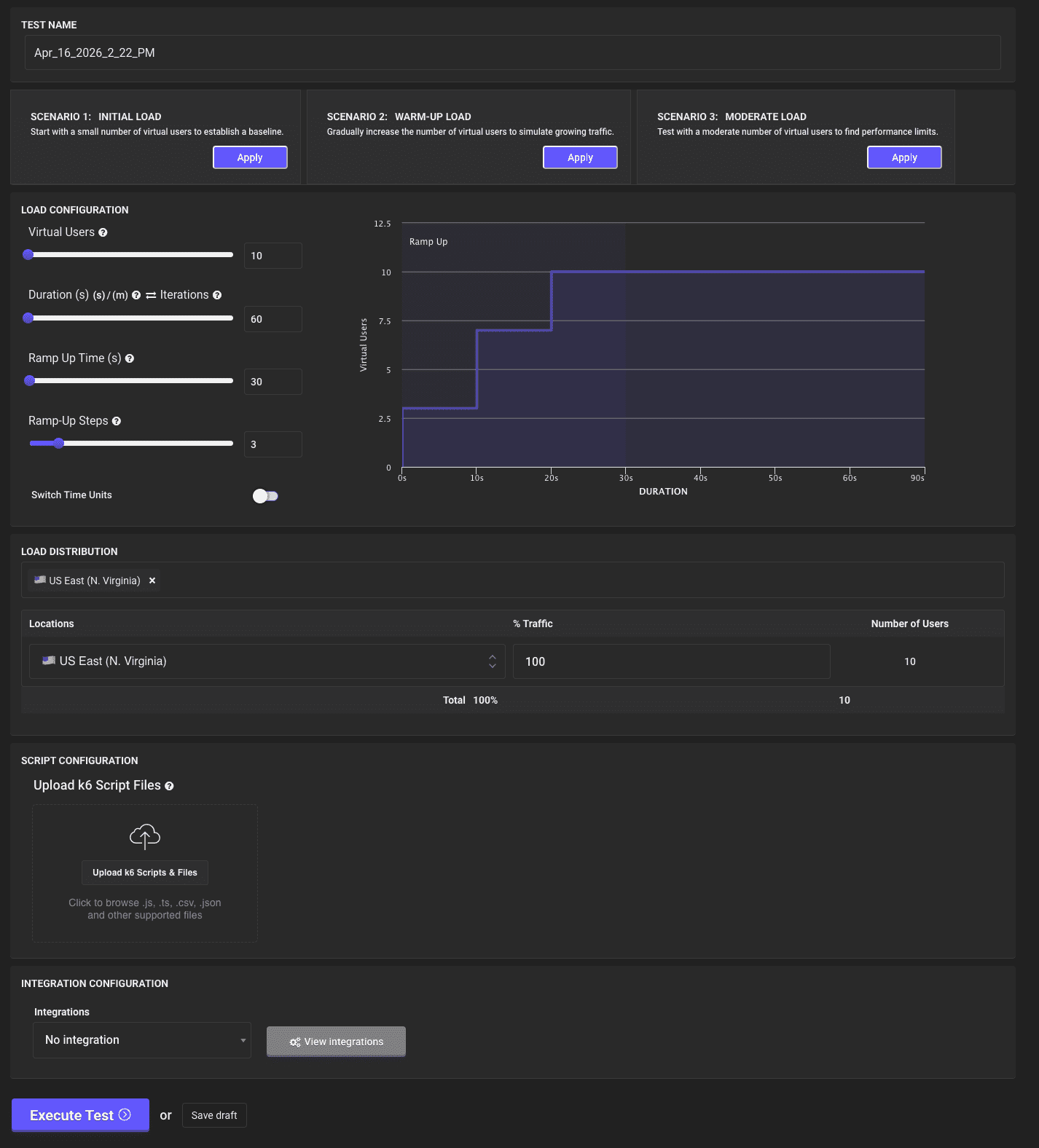
Steps to Configure a New k6 Load Test
1. Choose a Test Name
We automatically generate a test name using the current date and time. You can change the test name by going to the Test Name input field and setting your own name.
2. Load Scenarios
We offer three predefined scenarios to help you get started quickly:
- Scenario 1: Initial Load — Start with a small number of virtual users to establish a baseline.
- Scenario 2: Warm-up Load — Gradually increase the number of virtual users to simulate growing traffic.
- Scenario 3: Moderate Load — Test with a moderate number of virtual users to find performance limits.
Simply click the Apply button on any scenario to auto-fill the load test configuration.
3. Load Configuration
The Load Configuration section is where you define:
- Virtual Users — The number of concurrent virtual users to simulate (e.g., 10, 100, 1000+)
- Duration (s) — How long the test runs in seconds. Toggle Iterations to run a fixed number of iterations instead.
- Ramp Up Time (s) — How long it takes to reach the full number of virtual users
- Ramp-Up Steps — The number of steps to gradually increase load
The ramp-up chart on the right visually shows how virtual users will be added over the test duration.
You can toggle Switch Time Units to configure duration in minutes instead of seconds.
4. Load Distribution
Select up to 5 cloud locations from which to inject load. This simulates real-world traffic coming from different geographical regions simultaneously.
Each selected location can be assigned a percentage of traffic and a specific number of virtual users. For example:
- US East (N. Virginia): 100% (10 users)
You can distribute load across multiple locations — the percentages must total 100%. More details about the available locations can be found here.
5. Script Configuration
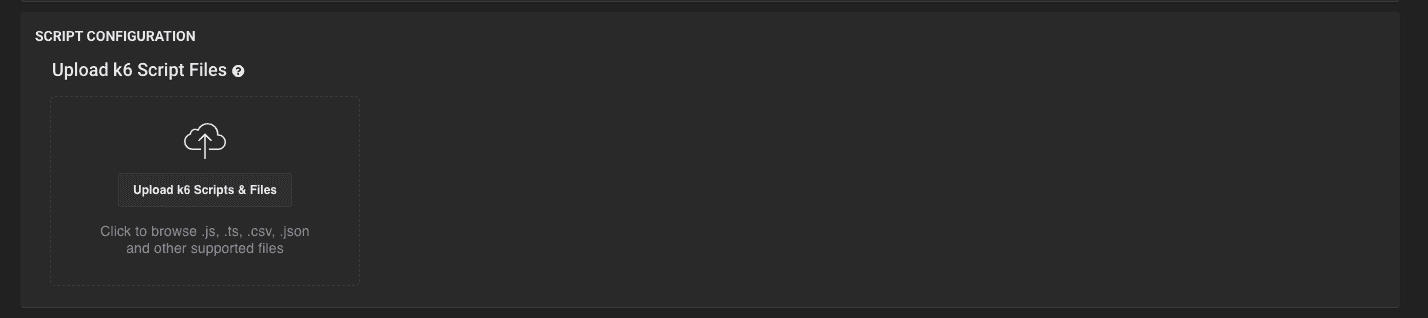
This is where you upload your k6 test script files. LoadFocus supports:
.js— Your main k6 test script (required).ts— TypeScript k6 scripts.csv— Data files for parameterized testing.json— Configuration or data files
You can drag and drop files into the upload area or click the Upload k6 Scripts & Files button to browse.
k6 Script Validation
LoadFocus automatically validates your k6 script upon upload, checking for:
- The
export default functionentry point - Valid k6 module imports (
k6/http,k6/check, etc.) - Common syntax errors
If there are any issues with your script, you'll be notified immediately before running the test.
Example k6 Script
import http from 'k6/http';import { check, sleep } from 'k6';export default function () {const res = http.get('https://test-api.k6.io/public/crocodiles/');check(res, {'status is 200': (r) => r.status === 200,'response time < 500ms': (r) => r.timings.duration < 500,});sleep(1);}
6. Integration Configuration
Optionally configure integrations to send test metrics to external monitoring tools:
- Datadog
- New Relic
- Dynatrace
- Azure App Insights
Click View integrations to configure your integration settings.
7. Execute Test
After configuring your load test and uploading your k6 script:
- Click Execute Test to start running your k6 load test in the cloud
- Click Save draft to save the configuration without running
LoadFocus will spin up cloud instances, run your k6 script at scale, and stream results back in real-time.