Analyzing k6 Load Test Results
Analyzing k6 Load Test Results
Once your k6 load test completes, LoadFocus provides comprehensive results across multiple tabs: Overview, AI Assist, Timeline, Insights, Errors, Stats, Logs, and Notes.
Results Overview
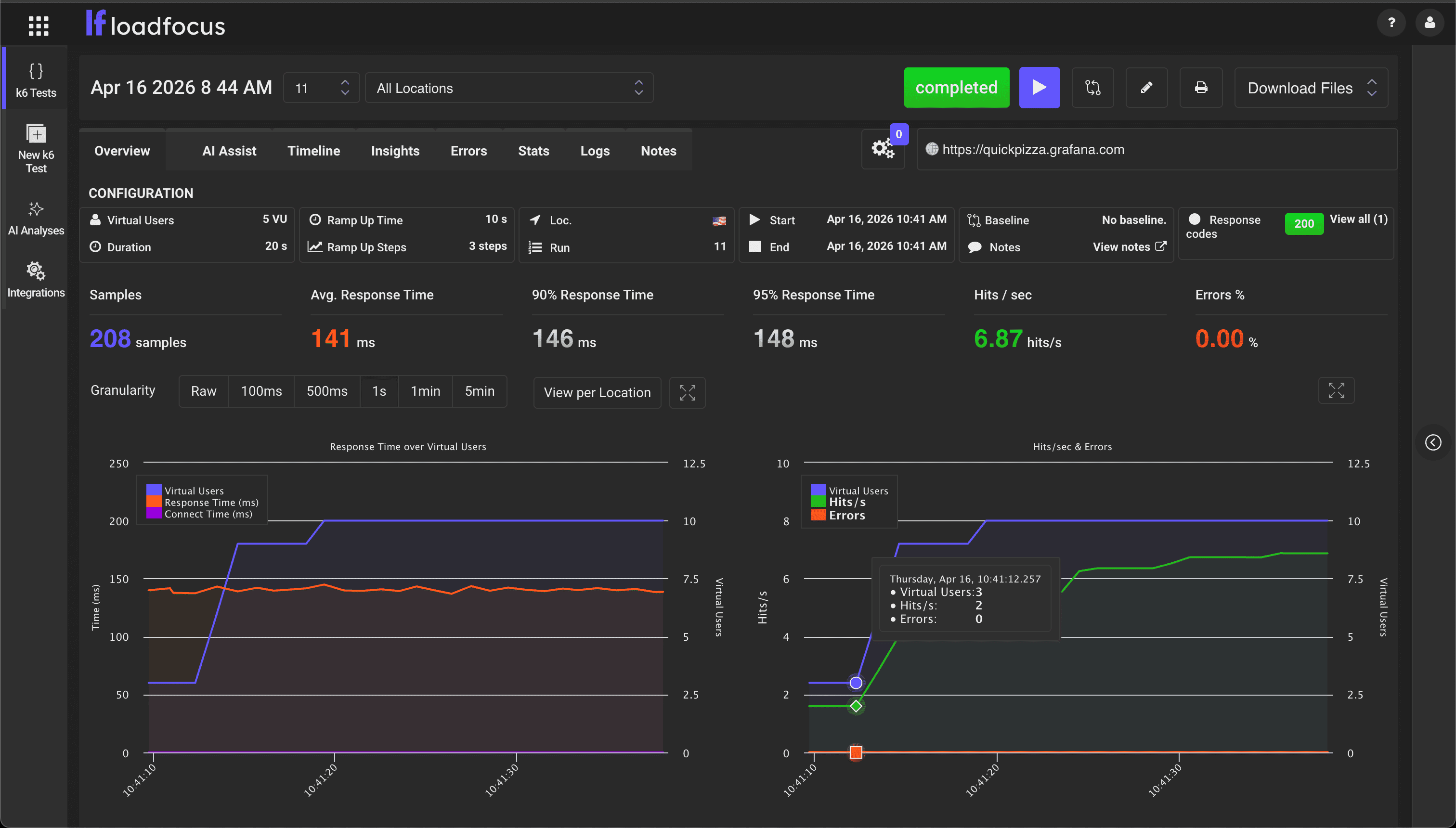
The Overview tab displays the key performance metrics for your test:
| Metric | Description |
|---|---|
| Samples | Total number of HTTP requests made during the test |
| Avg. Response Time | Average response time across all requests |
| 90th Response Time | 90th percentile — 90% of requests completed within this time |
| 95th Response Time | 95th percentile — 95% of requests completed within this time |
| Hits / sec | Request throughput (requests per second) |
| Errors % | Percentage of requests that returned errors |
The overview also shows the test configuration summary: Virtual Users, Duration, Ramp-Up Time, Ramp-Up Steps, and cloud locations used.
Below the metrics, interactive charts display:
- Response Time over Virtual Users — How response time changes as concurrent users increase
- Hits/s and Errors — Throughput and error rate over time
Use the Granularity controls (Raw, 100ms, 500ms, 1s, 1min, 5min) to adjust chart resolution. Toggle View per Location to see results broken down by test location.
Test Script Summary
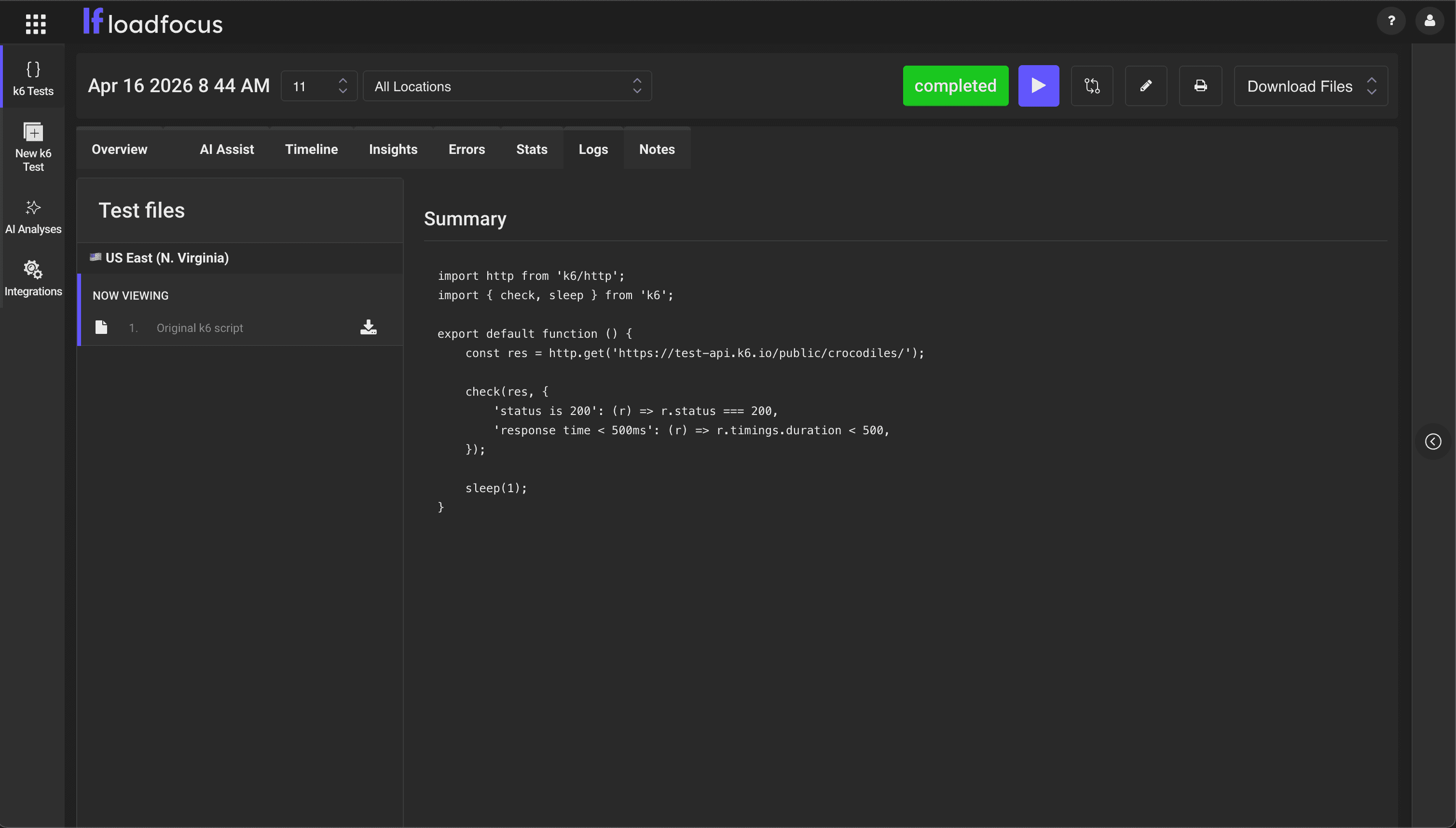
The Summary section shows:
- Test files — Lists the uploaded k6 script files organized by cloud location
- Script content — View the actual k6 JavaScript code that was executed
- Download — Download the original test files
This is useful for verifying which script version was used for a specific test run.
Timeline Results
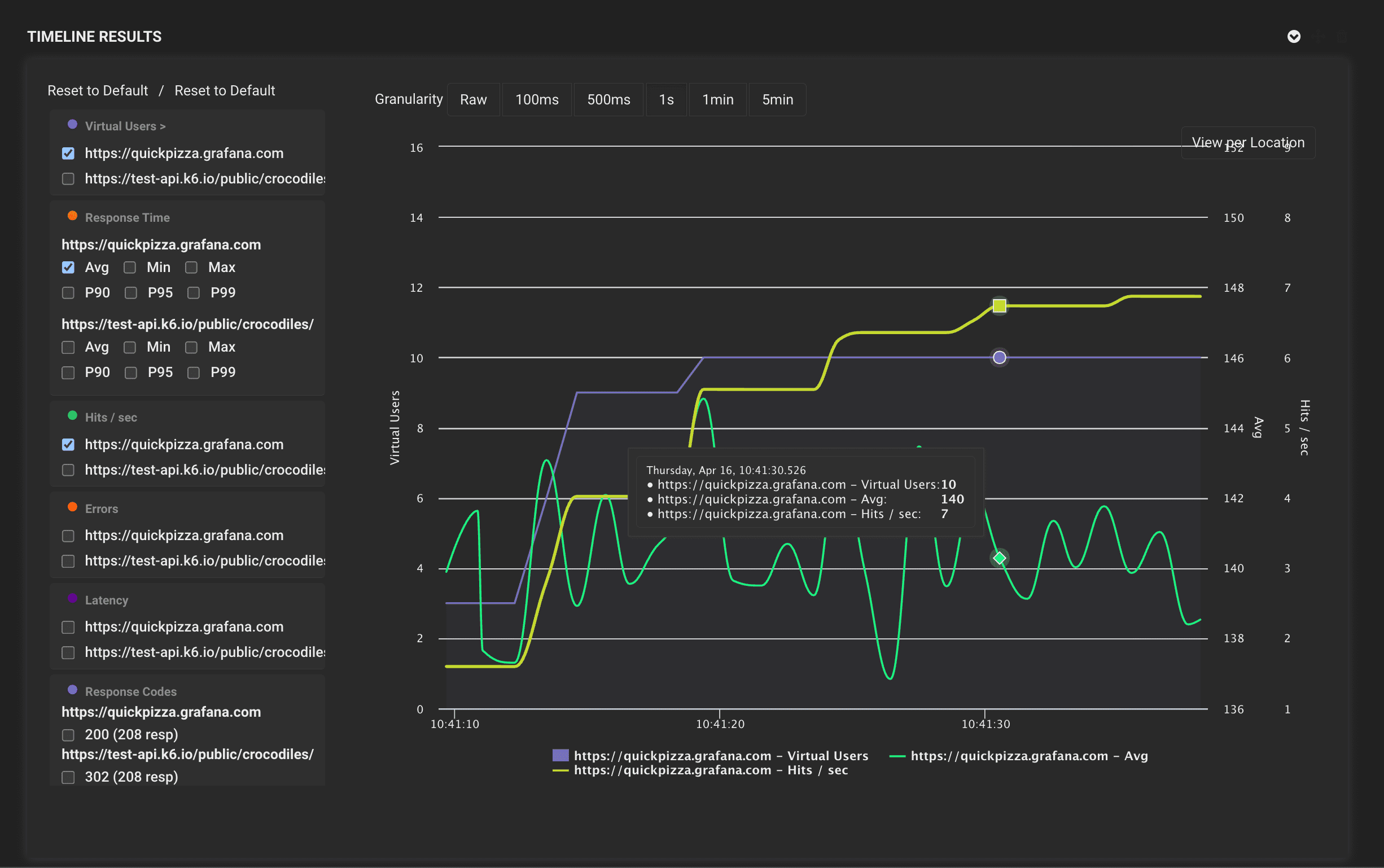
The Timeline tab provides detailed time-series charts for each URL/endpoint in your test:
- Virtual Users — Active concurrent users over time
- Response Time — Average, Min, Max, P90, P95, P99 response times
- Hits / sec — Request throughput per endpoint
- Latency — Network latency measurements
- Response Codes — HTTP status code distribution (200, 301, 404, etc.)
Each metric can be expanded to show individual endpoints. Hover over the charts to see precise values at any point in time.
The timeline view is essential for identifying:
- Performance degradation under increasing load
- Specific endpoints that slow down first
- Error spikes correlated with user count
- Latency patterns across different endpoints
Test Report
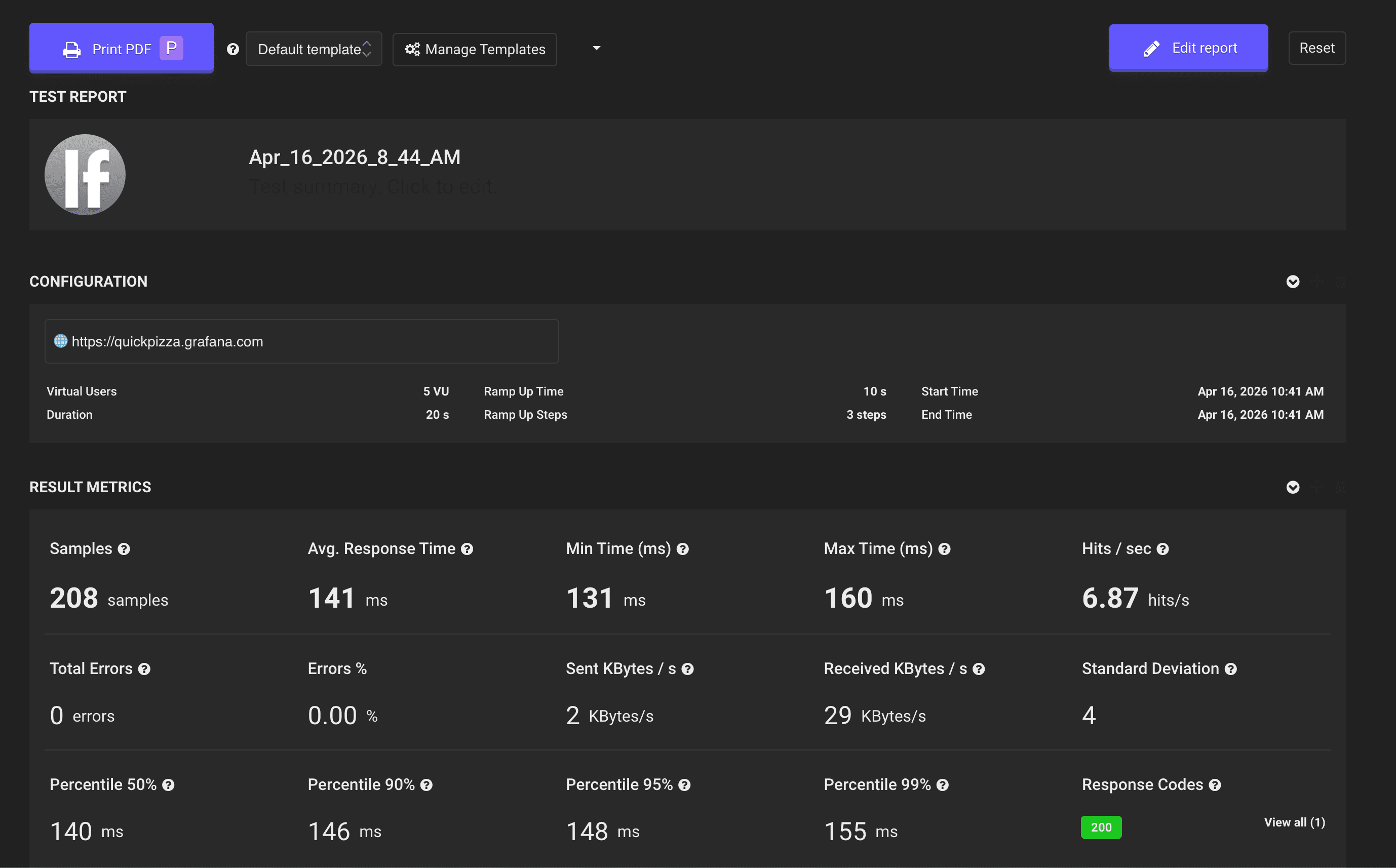
Click Print PDF to generate a detailed test report. The report includes:
Configuration section:
- Target URL
- Virtual Users, Duration, Ramp Up Time, Ramp Up Steps
- Start Time and End Time
Result Metrics section:
- Samples, Avg. Response Time, Min Time, Max Time, Hits/sec
- Total Errors, Errors %, Sent KBytes/s, Received KBytes/s, Standard Deviation
- Percentile breakdown: 50th, 90th, 95th, 99th
- Response Codes summary
You can customize the report using Manage Templates and Edit report options. Reports can be shared with your team or stakeholders.
AI-Powered Analysis
The AI Assist tab provides AI-powered analysis of your test results. After your test completes, click Generate AI Analysis to get:
- Bottleneck identification based on response time patterns
- Performance recommendations tailored to your tech stack
- Error analysis and root cause suggestions
- Optimization priorities ranked by impact
AI analysis credits are shared across all test types (Load Testing, JMeter, and k6).
Next Steps
- How to Run a New k6 Load Test — Configure and execute your first k6 test
- Load Testing Guide — General load testing concepts and best practices
- k6 Load Testing — Learn more about k6 on LoadFocus