Import cURL, HAR, Postman or OpenAPI to a JMeter Test
Import an existing request into a JMeter test
You do not need to build a .jmx test plan by hand to get started. If you already have a request captured as a cURL command, a HAR file, a Postman collection or an OpenAPI spec, LoadFocus can convert it into a JMeter .jmx test plan and attach it to your test in one step.
The conversion runs entirely in your browser. Nothing is sent to our servers during the conversion, and the generated .jmx is attached to the test exactly as if you had uploaded it yourself, including automatic validation.
Where to find it
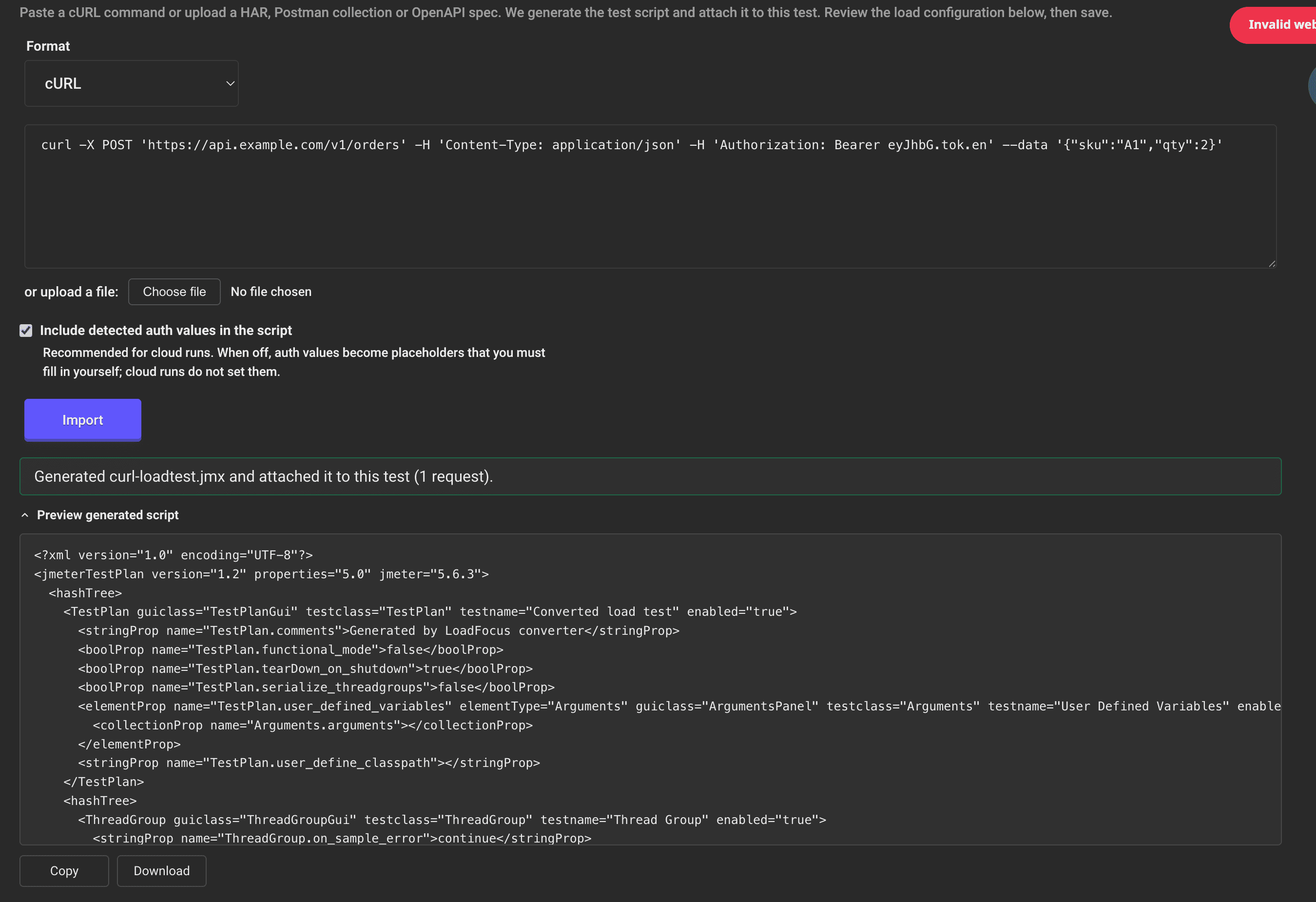
Open the New JMeter Test page (you need to be logged in) and expand the Import from cURL, HAR, Postman or OpenAPI panel, just above the JMeter file upload section.
Supported formats
- cURL: paste a
curlcommand, for example one copied from your browser's network tab ("Copy as cURL"). - HAR: an HTTP Archive exported from your browser's developer tools. Static assets (images, CSS, fonts) are filtered out by default so the test focuses on real API calls.
- Postman: a Postman collection exported as JSON. Collection variables are resolved where possible.
- OpenAPI: an OpenAPI or Swagger specification. Request bodies are synthesized from the schema when no example is provided.
Step by step
- Choose the format in the Format selector.
- Provide the source. Paste the cURL command or file content into the text area, or click Choose file to upload a HAR, Postman or OpenAPI file. When you upload a file, the format is detected automatically from its name.
- Decide how to handle detected auth values. The Include detected auth values in the script checkbox is on by default.
- On (recommended for cloud runs): detected
Authorization,Cookieand API-key headers are written into the test plan as-is, so the test works on the first run. - Off: those values become User Defined Variables that you fill in yourself. Cloud runs do not set these placeholder values, so the test would fail authentication until you provide them.
- On (recommended for cloud runs): detected
- Click Import. LoadFocus generates a
.jmxtest plan, attaches it to the test, runs the automatic.jmxvalidation, and fills in a test name based on the request host if you have not set one. If you upload a file, the import runs automatically. - Review the generated plan. Expand Preview generated script to see the
.jmx, with buttons to Copy it or Download it. - Configure the load and save. Set your virtual users, duration, ramp-up and load distribution as usual, then run or save the test. See How to Run a New Apache JMeter Load Test for the full configuration walkthrough.
Notes
- Only one
.jmxfile is kept per test. Importing again, or manually uploading a new.jmx, replaces the previous one. Data files such as.csvare left untouched, so you can still use multiple CSV files alongside an imported plan. - The imported plan is a starting point. You can download it, refine it in JMeter, and upload it back when you need assertions, timers or correlation the converter does not add.
- Prefer to work outside the app? The same conversion is available as free public tools: cURL to JMeter, HAR to JMeter, Postman to JMeter and OpenAPI to JMeter.