Teams Management
Overview
Teams let you share your LoadFocus account with colleagues. Each member gets a role and a list of services (Load Testing, JMeter Testing, Page Speed Monitoring, API Monitoring), so they can open the same tests and monitors you do.
Open the Teams site in either way:
- Go to https://teams.loadfocus.com/, or
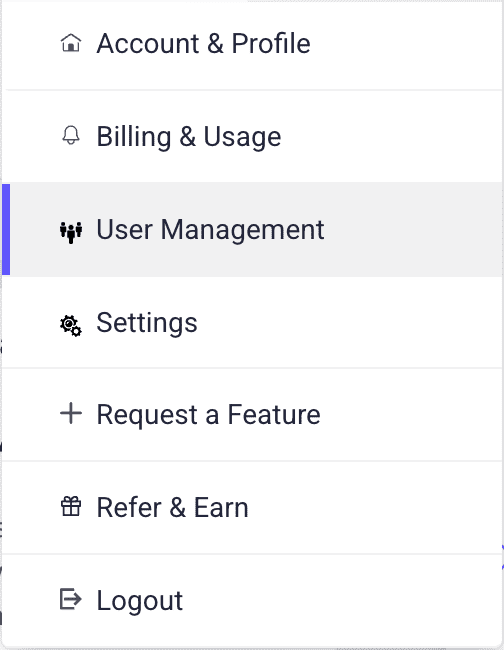
- Open the Account menu and select User Management.
The Teams site has four sections in its sidebar: Overall, Teams, Users and Invitations.
Teams need seats on your plan. The Free, Basic and Essential load testing plans include none; Pro includes 2 teams with up to 8 users each, and Enterprise 3 teams with up to 12 users each. When you have no free seat, Invite User shows "No available seats for the current plan."
Roles
- Owner: the account that created the team.
- Admin: works in the granted services and can invite and edit members.
- User: works in the granted services (run and edit tests) but cannot invite or edit members.
- Viewer: read-only access to the granted services. Viewers cannot make changes or run anything.
How to invite a team member
Open the Teams site and go to Users (or Teams).
Click Invite User.
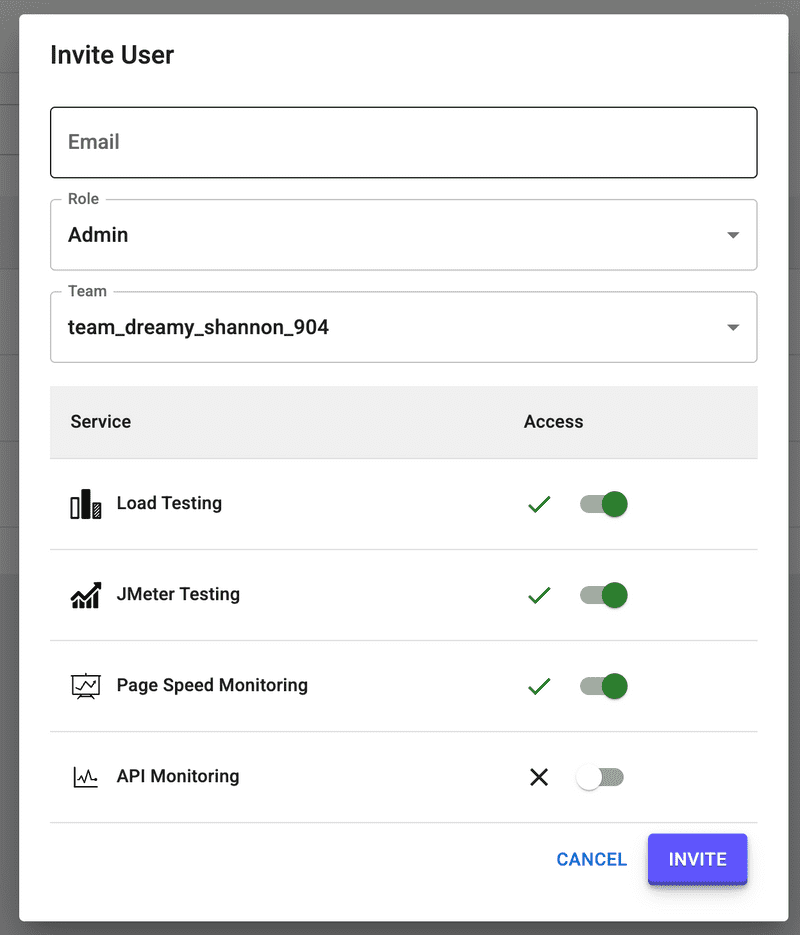
Enter the person's Email.
Choose a Role: Admin, User or Viewer.
Choose the Team.
Switch on the services the person may use. At least one is required.
Click Invite.
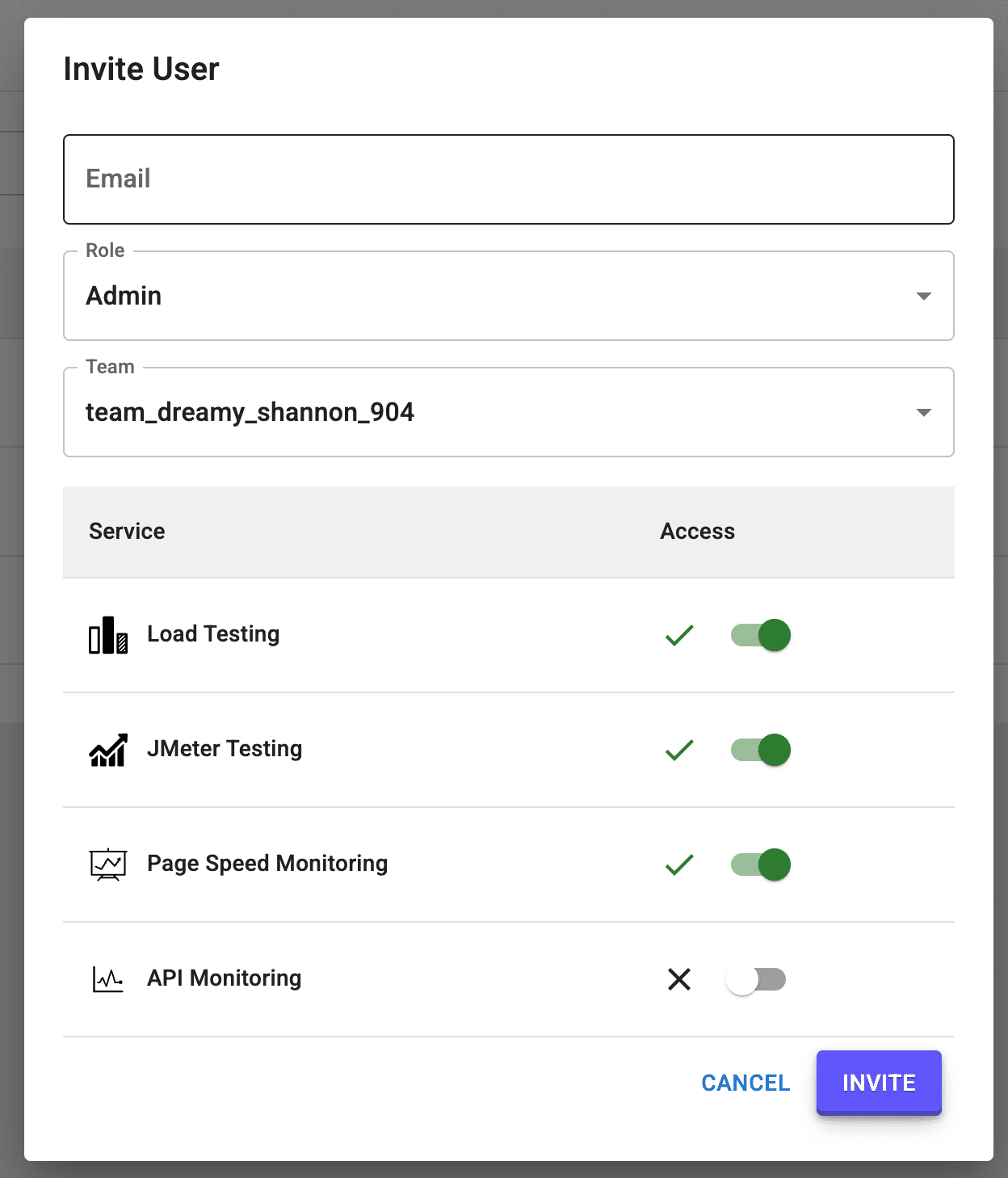
LoadFocus emails an invitation link. The invitee opens it, signs in (or creates a free account first), and accepts under Invitations, My Invitations, Accept Invitation. You can follow what you sent under Invitations sent.
Changing or removing a member
On the Users page, open the menu on a member's row:
- Edit changes the role and the services. Admins and owners can do this.
- Delete removes the member from the team. Only the owner can do this.
Switching between teams
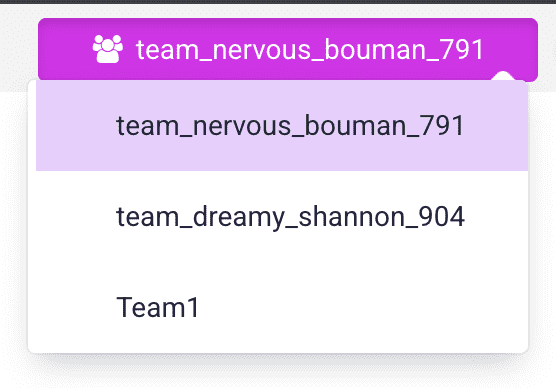
Use the Team selector in the top bar of the LoadFocus app and pick the team you want to work in. Tests, results and monitors shown are the ones of that team.