To save Apache JMeter results to a CSV file, run the test from the command line with the -l flag: jmeter -n -t plan.jmx -l results.csv. JMeter writes one line per sample, and CSV is the default format. For XML, add -Jjmeter.save.saveservice.output_format=xml, or tick Save As XML in a listener’s Configure dialog. In the GUI, any listener saves to the path in its Filename field. Every step below was checked against JMeter 5.6.3.
Key takeaways
-l results.csvin CLI mode saves every sample. CSV is the default; XML is a property or a checkbox away.- The file a listener writes holds raw samples, not the table on screen. To export the Aggregate Report table itself, click Save Table Data.
- The format comes from Save As XML or
jmeter.save.saveservice.output_format, never from the file extension. - Pick the saved fields before the run (the Configure dialog, or
jmeter.save.saveservice.*inuser.properties). A field that was not written cannot be recovered afterwards.
How to save JMeter results to a CSV file from the command line
Run the test plan in CLI mode and pass a results file with -l. JMeter creates the file, and any missing folders, and writes one CSV line per sample with a header row of field names. This is the method the JMeter manual recommends for real load tests, because the GUI and its listeners use memory and CPU that the test needs.
jmeter -n -t plan.jmx -l results.csv-nruns JMeter without the GUI,-tnames the test plan and-lnames the results file. The manual’s examples use the.jtlextension; the content is the same CSV whatever the extension.- If the file already exists, JMeter appends to it. Add
-fto delete existing results files (and the report folder) before the test starts. - For a new file on every run, let the shell add a timestamp:
-l results-$(date +%Y%m%d-%H%M%S).csvon macOS or Linux. - To get the HTML dashboard as well, add
-e -o report:jmeter -n -t plan.jmx -l results.csv -e -o report. Thereportfolder must not exist or must be empty, otherwise JMeter stops before the test starts. You can also build the report later from the saved file withjmeter -g results.csv -o report.
More on the flags in how to start JMeter in non-GUI mode.
How to save JMeter results to an XML file
Set the output format to XML. On the command line that is one property override; in the GUI it is the Save As XML checkbox in a listener’s Configure dialog. Choose XML only when you need what CSV cannot hold, such as response bodies or request and response headers for debugging. XML files are much larger, and the HTML dashboard only reads CSV.
jmeter -n -t plan.jmx -l results.xml -Jjmeter.save.saveservice.output_format=xmlTo make XML the default for every run, put jmeter.save.saveservice.output_format=xml in bin/user.properties instead. Renaming the file to .xml without changing the format still gives you CSV content.
Which fields JMeter saves: the jmeter.save.saveservice properties
JMeter decides which columns to write from the jmeter.save.saveservice.* properties. Their defaults are listed, commented out, in bin/jmeter.properties. Do not edit that file: copy the lines you want to change into bin/user.properties and restart JMeter. These settings apply to the -l file and are the starting values of every listener’s Configure dialog.
| Property | Default in 5.6.3 | What it controls |
|---|---|---|
jmeter.save.saveservice.output_format | csv | csv or xml |
jmeter.save.saveservice.print_field_names | true | Header row in CSV files |
jmeter.save.saveservice.default_delimiter | , | CSV separator (\t for tabs) |
jmeter.save.saveservice.timestamp_format | ms | Epoch milliseconds, or a date pattern such as yyyy/MM/dd HH:mm:ss.SSS |
jmeter.save.saveservice.url | true | The request URL |
jmeter.save.saveservice.hostname | false | The load generator’s host name |
jmeter.save.saveservice.response_data | false | Response bodies (XML only) |
jmeter.save.saveservice.response_data.on_error | false | Response bodies of failed samples only |
jmeter.save.saveservice.autoflush | false | Flush after every line: safer on a crash, slower |
Two more are worth knowing. sample_variables=SESSION_ID,ORDER_ID adds the values of those JMeter variables as extra columns (attributes in XML). And if you want the HTML report, keep the defaults the dashboard needs switched on: label, time, success, response code and message, thread name and thread counts, bytes, latency, connect time and the assertion failure message.
How to save results from a listener in the JMeter GUI
Listeners such as the Aggregate Report, Summary Report, View Results Tree and Simple Data Writer have a Write results to file / Read from file panel. Put a path in its Filename field and the listener writes each sample there while the test runs. This is handy while you build a script; for the load test itself, use -l in CLI mode and disable the listeners.
- Open JMeter (here is how to install and start JMeter on Mac), right click Test Plan and choose Add > Threads (Users) > Thread Group.
- Right click the Thread Group and choose Add > Sampler > HTTP Request. Type
example.comin Server Name or IP. - Right click the Thread Group and choose Add > Listener > Aggregate Report. A Simple Data Writer does the same job with no on-screen table, so it uses less memory.
- In Filename, type the full path, for example
/Users/you/jmeter/results.csvorC:\jmeter\results.csv. - Click Configure to choose the fields. Tick Save As XML at the top left if you want XML instead of CSV.
- Run the test. The file appears at that path.
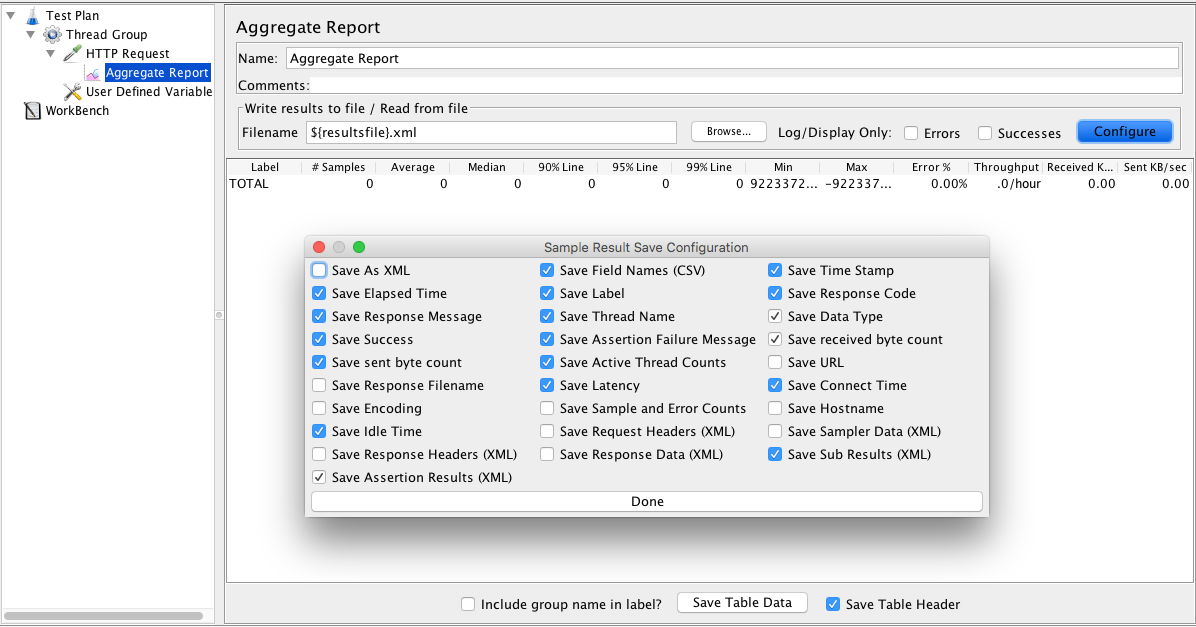
If the file already exists when you press Start, the GUI asks whether to append or overwrite. Set resultcollector.action_if_file_exists to APPEND or DELETE in user.properties to stop the question. More on building the plan itself: how to load test a web server with Apache JMeter.
How to save the JMeter Aggregate Report to a file
The Filename field does not save the Aggregate Report table. It saves the raw samples the table is calculated from. To save the table (label, samples, average, median, 90/95/99% lines, min, max, error %, throughput, KB/sec), use one of these:
- Save Table Data at the bottom of the Aggregate Report writes the table as CSV. Keep Save Table Header ticked to include the column names. Throughput is written in requests per second, so 30 per minute appears as 0.5.
- From a finished run: add an Aggregate Report, click Browse… and open the results file. The table fills from the file, and Save Table Data exports it. The JMeter manual recommends this over watching the listener during the test.
- From the command line: install Command-Line Graph Plotting Tool with the JMeter Plugins Manager, then run
JMeterPluginsCMD.sh --generate-csv aggregate.csv --input-jtl results.csv --plugin-type AggregateReport(JMeterPluginsCMD.baton Windows). - HTML dashboard: the report from
-e -o(or-g) has the same statistics in its Statistics table.
How to save results next to the test plan, with a timestamp in the name
A relative filename is resolved against JMeter’s current working directory, which is often bin/. To save next to the .jmx file instead, start the filename with ~/, for example ~/results.csv. The prefix is the jmeter.save.saveservice.base_prefix property, and it only works once the test plan has been saved. Older guides use ${__property(user.dir)} for this, but user.dir is the working directory, not the folder of the test plan.
To combine the folder with a timestamp, so that runs do not append to each other:
- Right click Test Plan and choose Add > Config Element > User Defined Variables. More on these in how to use User Defined Variables in JMeter.
- Add a variable named
resultsfilewith the value~/results_${__time(YMDHMS)}.YMDHMSis JMeter’s shorthand foryyyyMMdd-HHmmss, and a User Defined Variable is evaluated once at the start, so the whole run shares one name. - In the listener’s Filename, type
${resultsfile}.csv, or${resultsfile}.xmlwith Save As XML ticked.
You no longer need ${__BeanShell(File.separator,)} between folder and file name: Java accepts / on Windows too, and JMeter has recommended Groovy over BeanShell since version 3.1.
Running the same test in the cloud
When one machine is not enough to generate the load, LoadFocus runs your existing .jmx file from 25+ cloud regions together with your CSV data files. Results break response times, throughput and errors down by request and by test location, so you do not have to merge result files from several load generators yourself.
Frequently Asked Questions
Should I save JMeter results as CSV or XML?
CSV in almost every case. It is much smaller, JMeter writes it faster, and the HTML dashboard can only read CSV. Use XML for short debugging runs where you need response bodies, headers or sampler data, which a CSV file cannot hold.
Why does JMeter say the output folder must be empty?
The -o folder for the HTML report must not exist or must be empty, and JMeter refuses to start the test otherwise. Delete the folder, use a new name for each run, or add -f, which deletes the existing results file and report folder before the test starts.
Does JMeter overwrite the results file?
No. In CLI mode JMeter appends new samples to an existing -l file, which can mix two runs in one file and in one report. Use a new file name per run, or add -f. In the GUI, JMeter asks unless resultcollector.action_if_file_exists is set.
What is a .jtl file?
It is the extension the JMeter manual uses for results files. A .jtl file holds either CSV or XML, depending on jmeter.save.saveservice.output_format or the Save As XML setting, so open the file to check which one you have.
Can I add fields to a results file later?
No. JMeter only writes the fields selected when the test ran, so choose them in Configure or in user.properties before a long run. You can add JMeter variables as extra columns with the sample_variables property, again before the run.
Sources
- Apache JMeter user manual, Listeners (Configure dialog, relative paths and
~/, the-lflag, CSV columns, append behaviour), read 23 October 2026. - Apache JMeter, jmeter.properties in the 5.6.3 source (
jmeter.save.saveservice.*defaults,resultcollector.action_if_file_exists), read 23 October 2026. - Apache JMeter user manual, Getting Started: CLI mode (
-n,-t,-l,-e,-o,-f,-g), read 23 October 2026. - Apache JMeter user manual, Generating Report Dashboard (CSV requirement, empty output folder), read 23 October 2026.
- Apache JMeter component reference, Aggregate Report (columns, throughput saved per second, reloading a results file), read 23 October 2026.
- JMeter Plugins, JMeterPluginsCMD (
--generate-csv,AggregateReportplugin type), read 23 October 2026.
Related reading
- How to Use CSV Data Set to Configure JMeter Tests
- Using CSV Data in JMeter Tests
- JMeter for Beginners: What to Learn, in Order
- JMeter: CSV Login Credentials and Token Extraction
Run this JMX in the cloud, from 25+ regions
Upload your JMeter script to LoadFocus and run it with thousands of virtual users from 25+ cloud locations, with no load generators to manage. Results show p95/p99 response times, throughput and errors per request, and a free tier is included.