Key takeaways
- The XPath Extractor pulls values out of an XML or HTML response for use in later requests.
- Match on a stable element rather than position, which changes with the response.
- For JSON use the JSON extractor instead; XPath on JSON is a workaround, not a solution.
In order to add an XPath Extractor to your JMeter script you need to begin by installing JMeter and create an HTTP Request. If you want to check how you can create a load test with Apache JMeter, please check our previous blog post.
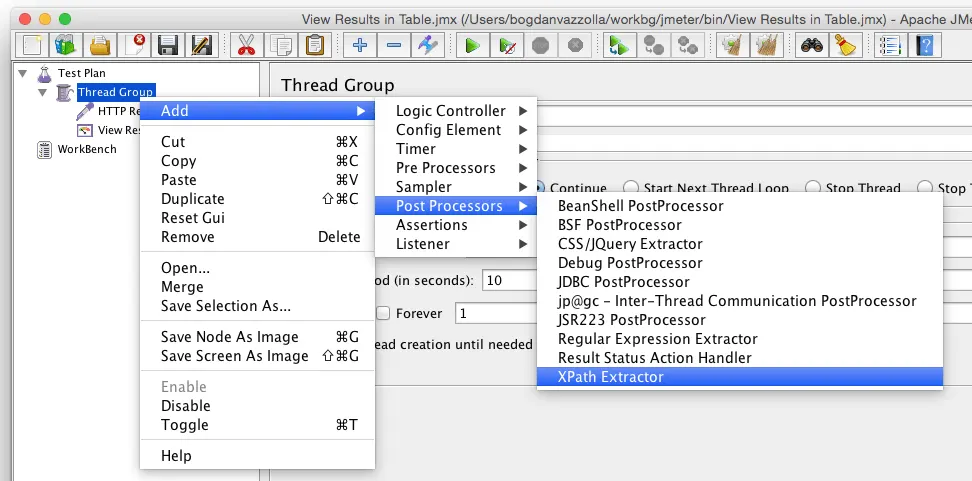
Start by adding a XPath Extractor to your HTTP Request by following the below steps:
- Select the HTTP Request on the left side, and Right-click it
- Hover to Add -> Post Processors -> XPath Extractor
- Click on XPath Extractor
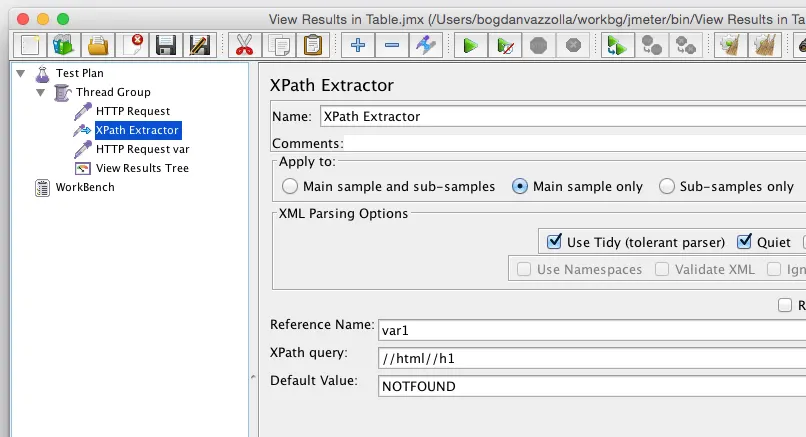
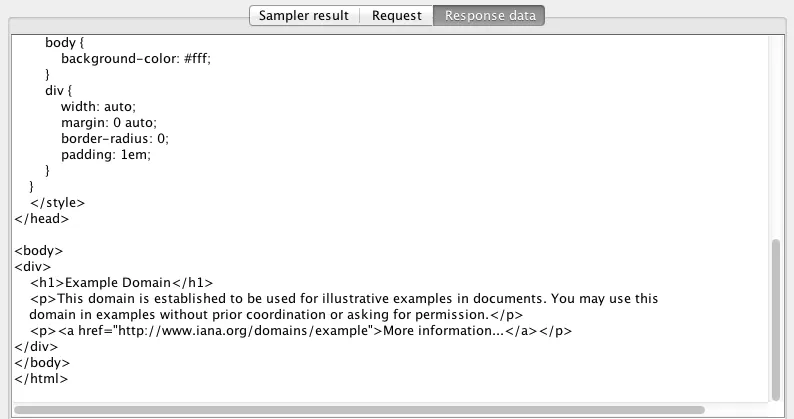
Update the XPath Extractor with the desired variable names and expected XPath. We are going to make an HTTP Request to https://example.com/ and based on the HTML response, we are going to extract the H1 tag from the website and use it in the next request.
Update the XPATH Extractor with the following details:
- Reference Name: The name of the JMeter variable in which to store the result, var1
- XPath Query: Element query in XPath language. Can return more than one match, //html//h1
- Default Value: Default value returned when no match found. It is also returned if the node has no value and the fragment option is not selected, NOTFOUND
[emaillocker id=”1703″]
Copy the existing HTTP Request and add the variable in the Server Name:

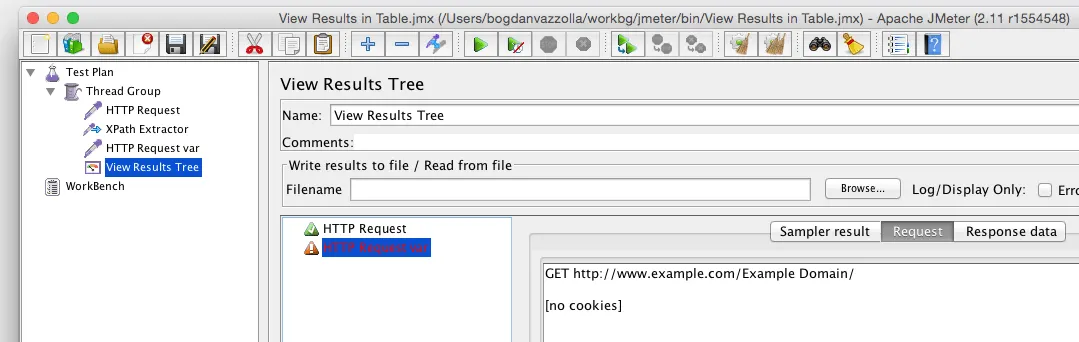
In the View Results Tree, you can see that the variable var1 contains the content extracted from the XPATH //html//h1, Example Domain, and the second request is going to be:
- GET https://www.example.com/Example Domain/
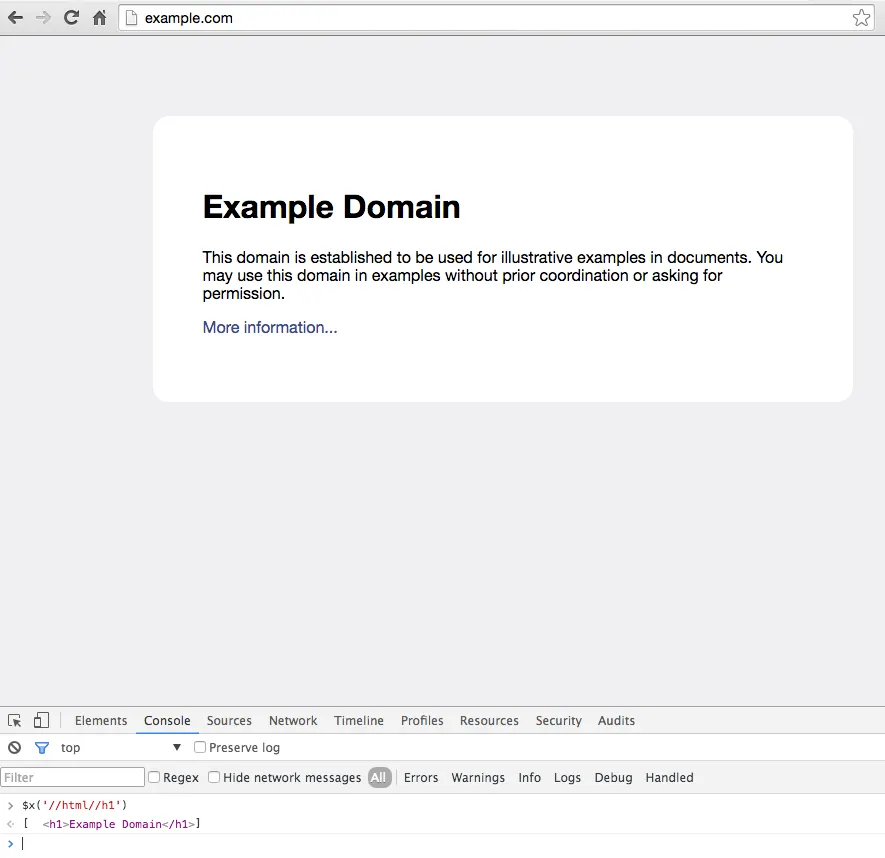
Have in mind that you can check the XPath also from inside the browser’s console, by typing the following:
$x('//html//h1') which should output the element’s content that was saved inside the ${var1} variable from XPath Extractor.
[/emaillocker]
In order to run load tests with thousands of threads (users) and to run load tests from different world locations, you can use LoadFocus.com which offers a cloud load testing service, easy to use, which keeps all your tests and test runs in the history automatically.
Frequently Asked Questions
What does the XPath Extractor do?
Pulls a value out of an XML or HTML response so a later request can use it, which is how you chain requests that depend on a returned id or token.
How do I stop the extractor breaking?
Match on a stable element rather than position. Response structure changes more often than element names, and a positional path fails silently by extracting the wrong value.
Does it work on JSON?
Use the JSON extractor for JSON. XPath against JSON is a workaround that is harder to read and breaks on shapes the proper extractor handles.