Key takeaways
- A screen recording captures the exact sequence that reproduces a bug, which a description rarely does.
- Record on the device rather than an emulator when timing or gestures matter.
- Keep clips short and start just before the problem, so the reviewer sees it immediately.
Is Your Infrastructure Ready for Global Traffic Spikes?
Unexpected load surges can disrupt your services. With LoadFocus’s cutting-edge Load Testing solutions, simulate real-world traffic from multiple global locations in a single test. Our advanced engine dynamically upscales and downscales virtual users in real time, delivering comprehensive reports that empower you to identify and resolve performance bottlenecks before they affect your users.
There are quite a few applications on the market that help you to make a screenshot of your application, capture the screen of your mobile or make a recording of your iPhone application.
These recording tools allow to record the screen of your mobile phone while using your application. This use case is very important when you want to demo an application to the product owners or to your clients. Some of these tools are Reflector 2 or X-Mirage.
The only bad part about these tools is that they are not free. We found another option to all these paid screen capturing/recording tools, an this option is totally free.
Below are the steps for taking a screenshot or for making a recording of your iPhone screen while using the application:
- Connect your iPhone to your Mac using the cable that comes with your phone
- Open QuickTime Player
- by pressing Cmd + Space on your keyboard and typing “QuickTime”
or - by going to Applications folder and double clicking “QuickTime“
- by pressing Cmd + Space on your keyboard and typing “QuickTime”
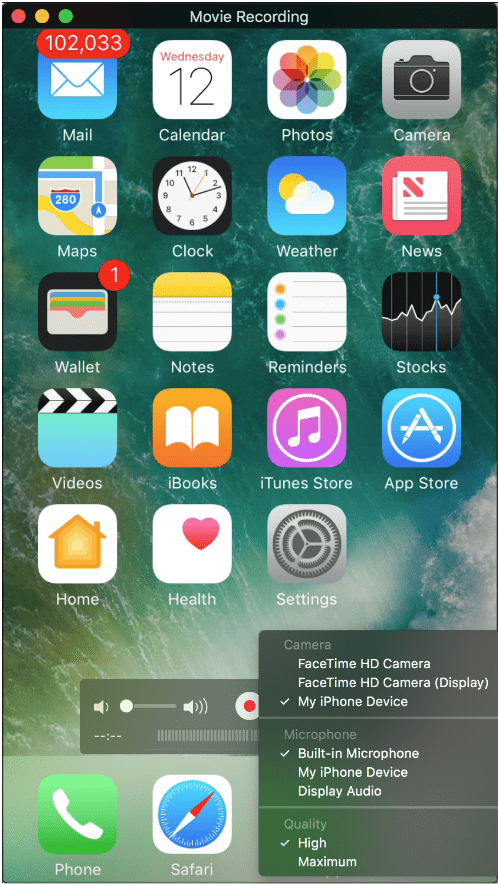
- Click on File -> New Movie Recording
- A new screen will appear and by default will try to record from your laptop camera
- On the drop down that appears on the new screen, select the name of your device
- Your mobile screen should appear on the laptop screen and you can click Record to start recording your video
Think your website can handle a traffic spike?
Fair enough, but why leave it to chance? Uncover your website’s true limits with LoadFocus’s cloud-based Load Testing for Web Apps, Websites, and APIs. Avoid the risk of costly downtimes and missed opportunities—find out before your users do!
Frequently Asked Questions
Why record the screen instead of describing the bug?
Because a recording captures the exact sequence that reproduces it. Written steps almost always omit the detail that actually matters, usually one nobody noticed.
Device or emulator?
The device, whenever timing or gestures are involved. Emulators smooth over exactly the behaviour that makes those bugs reproducible.
How long should the clip be?
Short, starting just before the problem. A reviewer who has to scrub through several minutes to find the moment usually stops before they get there.
LoadFocus is an all-in-one Cloud Testing Platform for Websites and APIs for Load Testing, Apache JMeter Load Testing, Page Speed Monitoring and API Monitoring!