Key takeaways
- JMeter defaults to a small heap, which causes out-of-memory failures on large tests.
- Raise the heap in the startup script, and run non-GUI with listeners disabled.
- If you still run out, the answer is distributed load rather than a bigger heap.
Why is Apache JMeter very slow when creating and running load tests?
If you just downloaded and opened Apache JMeter and the UI it feels very slow, here are some items you can follow to make Apache Jmeter GUI move faster.
Increase the Apache JMeter Heap Size
- Apache JMeter is a Java application, this means you have to increase the Java Virtual Machine initial heap size and maximum heap size
- The easiest way to increase the heap sizes is to edit the
jmeter.batfile and add the following line:
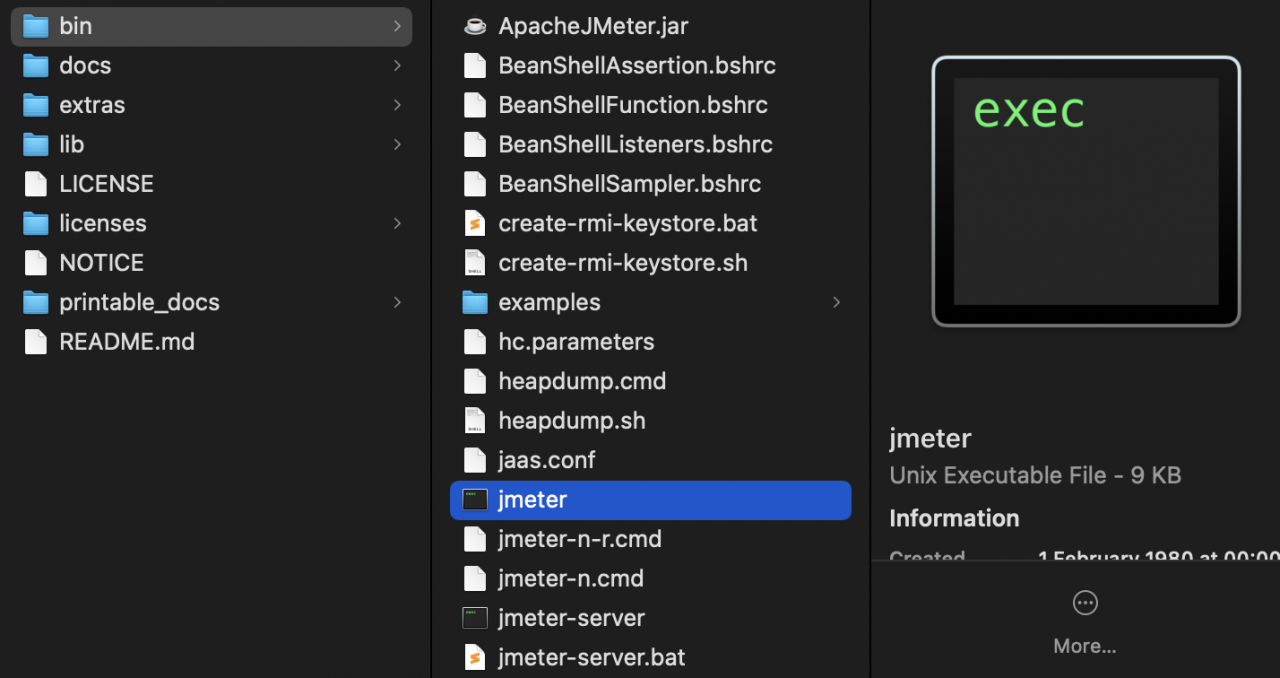
[emaillocker id=”1703″]
Is Your Infrastructure Ready for Global Traffic Spikes?
Unexpected load surges can disrupt your services. With LoadFocus’s cutting-edge Load Testing solutions, simulate real-world traffic from multiple global locations in a single test. Our advanced engine dynamically upscales and downscales virtual users in real time, delivering comprehensive reports that empower you to identify and resolve performance bottlenecks before they affect your users.
Find the following line:
# This is the base heap size -- you may increase or decrease it to fit your
# system's memory availability:
: "${HEAP:="-Xms1g -Xmx1g -XX:MaxMetaspaceSize=256m"}"
or if that is missing, add the line below:
set HEAP=-Xms2g -Xmx2g -XX:MaxMetaspaceSize=12g
Save the changes made in the jmeter.bat file and restart JMeter. Now creating JMeter test scripts will feel much faster.
Think your website can handle a traffic spike?
Fair enough, but why leave it to chance? Uncover your website’s true limits with LoadFocus’s cloud-based Load Testing for Web Apps, Websites, and APIs. Avoid the risk of costly downtimes and missed opportunities—find out before your users do!
Run your JMeter load test in non-GUI mode
More details on how to run your JMeter test in non-GUI mode can be found here, however here is a quick example:
jmeter -n -t my_test.jmx -l log.jtl -H my.proxy.server -P 8000
Disable JMeter listeners during test execution
Most likely you don’t need the listeners during test execution, so you can easily disabled them by pressing Ctrl/Cmd + T and have the disabled during the test run.
LoadFocus is an all-in-one Cloud Testing Platform for Websites and APIs for Load Testing, Apache JMeter Load Testing, Page Speed Monitoring and API Monitoring!
Monitor machine resources CPU, Memory, Network
You can easily monitor the resources of the machine where JMeter load tests are running upon by using a plugin: JMeter PerfMon plugin. Check more details on how to install JMeter plugins in our other post.
By now, your JMeter test creation should feel much faster and your non-GUI performance tests should behave better.
Update Java to the Latest Version
Check which version of Java you have installed on your machine, for Mac users you can check by typing in the terminal the following command:
/usr/libexec/java_home -VWritten by Bogdan Vazzolla.
[/emaillocker]
With JMeter Cloud Load Testing Tool from LoadFocus, you can upload your Apache JMeter test scripts (.jmx files), run and analyse JMeter results from multiple world locations, everything in an easy to use UI.
Frequently Asked Questions
Why does JMeter run out of memory?
Because it defaults to a modest heap, which is fine for building a plan and too small for a large run. The failure usually arrives well into a test, which makes it expensive.
How do I raise it?
Set the heap in the JMeter startup script, and run non-GUI with listeners disabled so the memory goes to generating load rather than to storing and drawing results.
What if it still runs out?
Distribute the load across machines. Past a point a bigger heap is delaying a limit rather than removing it, and one machine cannot generate the traffic anyway.