Key takeaways
- A scheduled test only helps if it alerts, since nobody reads a passing report.
- Set the failure condition first: what result would genuinely warrant a message.
- Match frequency to deploy cadence rather than running nightly by default.
- Scheduling needs a paid Load Testing plan. Runs count against the same limits as manual runs, and a run that hits a limit is skipped, not queued.
Performance rarely breaks on the day you run a load test. It breaks three deploys later, on a Tuesday, when nobody is looking. LoadFocus can now run your load tests for you on a recurring schedule, and email you only when a run actually starts failing. Set it once, and let it watch your app.
Most teams run a load test right before a big launch, see green, and move on. Then the code keeps changing: a new query here, an extra API call there, a caching change that looked harmless in review. By the time someone runs the next manual test, the regression has already shipped. Scheduled load tests close that gap. You attach a schedule to a test you have already saved, pick how often it should run, set your pass and fail thresholds, and LoadFocus takes it from there.
Pick how often your test runs
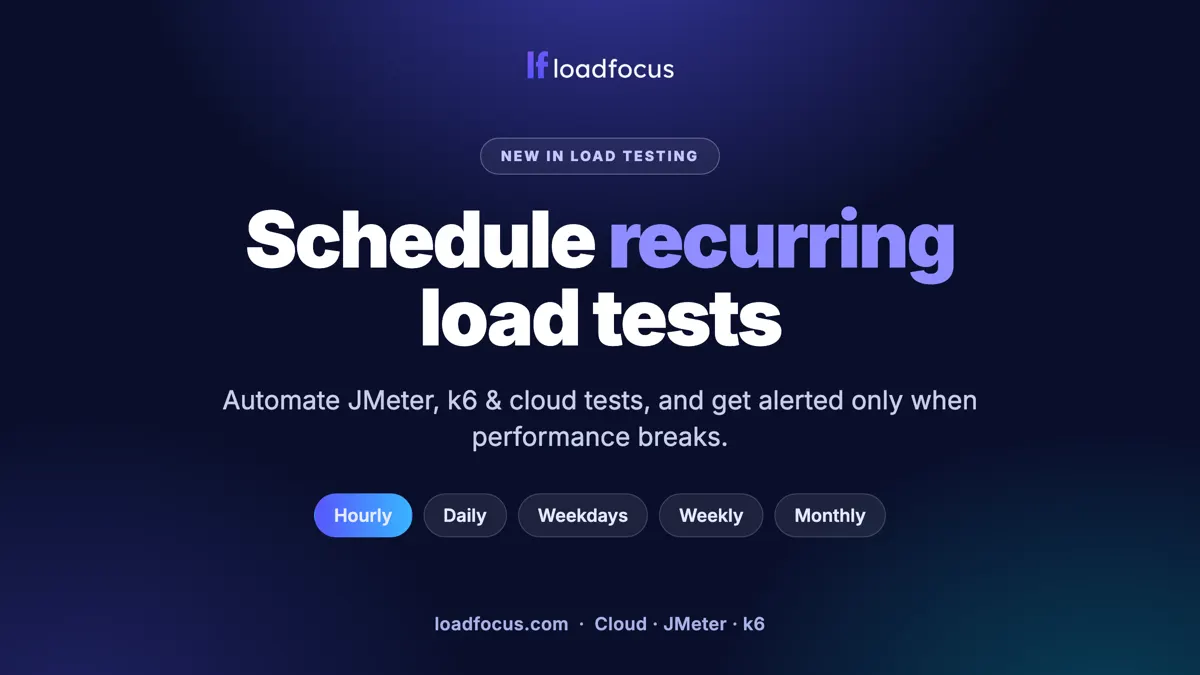
You are no longer limited to a single cadence. A scheduled load test can run on any of these frequencies, in the time and timezone you choose:
- Hourly, for critical paths you never want to regress
- Every few hours, from every 2 up to every 12
- Daily, the classic overnight smoke test
- Chosen weekdays, for example Mon, Wed and Fri
- Weekly, on the day and time you pick
- Monthly, on a day of the month from 1 to 28, for slower moving systems
Higher frequencies are checked against your plan’s daily run limit when you set the schedule, and LoadFocus warns you up front if a cadence would exceed it. The LoadFocus changelog announced the hourly, every-few-hours and weekday options; the docs guide currently lists only daily, weekly and monthly, so the docs lag the product here.
Scheduled runs count against the same limits as manual runs: parallel test slots and the per-day, per-week, per-month and per-year caps. If a run cannot start because a limit is reached at that moment, for example a previous test still holds the parallel slot, LoadFocus skips that one run and carries on with the next scheduled time. Do not schedule a test to start while another test of the same team is still running.
Alerts only when it matters
A monitor that emails you after every run trains you to ignore it. Scheduled load tests do the opposite. The alerting is transition based, which means you hear about the change, not the routine:
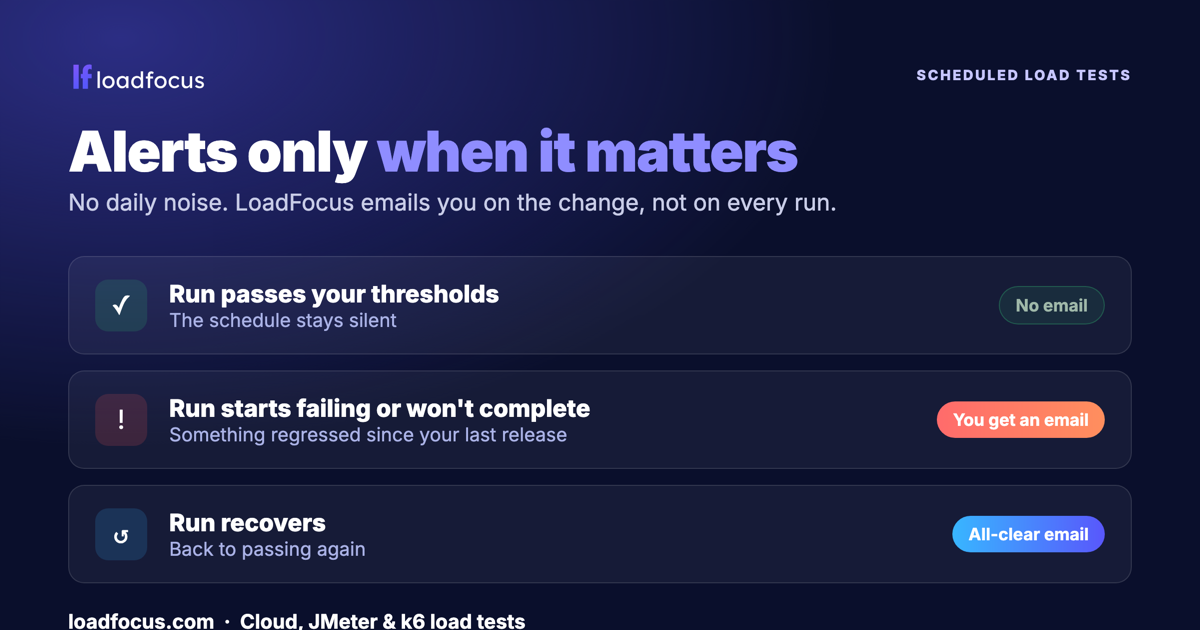
You get an email when a run starts failing, a follow up when it recovers, and nothing while it keeps passing.
- While a run passes your thresholds, the schedule stays silent. No daily noise.
- When a run starts failing its thresholds, or stops completing, you get an email straight away. A daily failing test alerts you once, not every single day.
- When it recovers, you get an all-clear email so you know the fix landed.
That is the difference between a schedule you actually keep on, and one you mute after a week.
What counts as a failing run
You decide. Each load test can carry pass and fail thresholds on the metrics that matter to you, for example response time percentiles, throughput, and error rate. After every scheduled run, LoadFocus compares the results against those thresholds and produces a pass or fail verdict. A run that does not complete at all is treated as a failure too. If a test has no pass/fail thresholds, a scheduled run alerts only when it fails to complete, so add thresholds first. Alert emails go to the test owner and list the failed checks with a link to the results. See the pass/fail thresholds guide for how to set them.
AI analysis. When a scheduled run fails, you can open the finished run and ask AI load test analysis for a plain-language read of the likely bottleneck. Every plan includes a monthly allowance of analyses; the page lists the numbers per plan.
Works with the tests you already have
Scheduling is built into all three LoadFocus load testing engines. Whatever you use today, you can schedule it:
- Cloud load tests, configured in the browser from 25+ cloud regions.
- JMeter load tests, running your existing
.jmxplans in the cloud. - k6 load tests, running your JavaScript scripts unchanged.
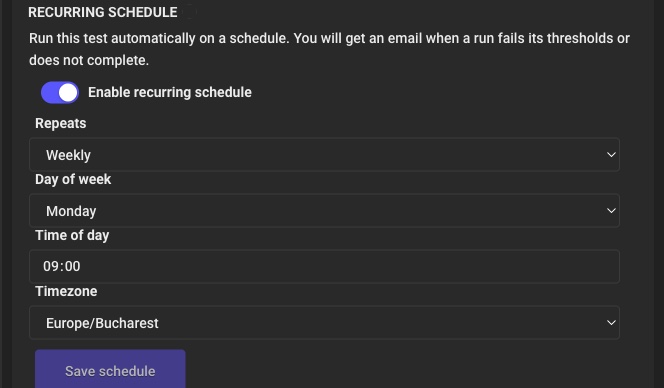
The Recurring Schedule panel, available on every new or saved load test.
Setting up a schedule
- Open the test. Cloud, JMeter or k6, on a paid Load Testing plan.
- Find the Recurring Schedule section below the request and threshold configuration, and tick Enable recurring schedule.
- Choose the frequency, time of day (24-hour clock) and timezone. The timezone defaults to your browser’s, and daylight-saving changes are handled.
- Confirm your pass and fail thresholds. They decide when a run counts as a failure and triggers an alert.
- Save. LoadFocus shows the next run. To stop the schedule, use Remove schedule, or untick the box and save.
You can also choose Schedule test in the row menu of your test list, which opens the test page with the schedule section ready.
See the status at a glance
Once a test is scheduled, you can see it everywhere it matters:
- A SCHEDULED badge appears next to the test in your list, and SCHEDULE PAUSED if it has been paused.
- Hovering the badge shows the cadence and time.
- A schedule is paused, with an email to the owner, only when the account can no longer run it at all, for example after a failed payment or when the plan no longer includes scheduling. Saving the schedule again re-enables it.
Where scheduled load tests shine
- Catch regressions between releases, by running a nightly or hourly test against staging or production.
- Protect a critical user journey, checkout, login, search, on its own tight schedule.
- Prove an SLA over time, with a weekly run that documents performance week after week.
Testing APIs and uptime too? Scheduled load tests focus on performance under load. For continuous uptime, latency and correctness checks between load tests, pair them with API monitoring for round-the-clock coverage.
Availability
Scheduled recurring load tests are available on paid Load Testing plans, for cloud, JMeter and k6 tests. See what each plan includes on the pricing page. The step-by-step walkthrough is in the Scheduled Load Tests guide.
General advice on scheduling load tests (not LoadFocus specific)
- Pick a quiet window for production. Run against staging where you can. If you must test production, schedule it away from your own peak hours and agree it with whoever owns the environment.
- Avoid collisions. Two tests against one shared environment distort each other’s numbers. Keep scheduled runs away from deploy windows and from other teams’ tests.
- Keep the same time slot for comparisons. Time of day changes results through caches, batch jobs and background load, so compare runs from the same slot.
- Use a CI job for release gates. A schedule catches drift between releases. A CI trigger on each deploy ties a result to one change. They complement each other: see CI/CD best practices.
Put your load tests on autopilot
Schedule a saved test and only hear from LoadFocus when something needs your attention. See the plans or read the guide
Frequently Asked Questions
How often can a load test run?
Hourly, every few hours (from every 2 up to every 12), daily, on specific weekdays, weekly, or monthly (day 1 to 28), at the time and timezone you choose. Higher frequencies are checked against your plan’s daily run limit.
Will I get an email after every run?
No. A passing run sends no email. You get an email when a run fails its thresholds or fails to complete. According to the LoadFocus changelog, a follow-up arrives when the run recovers, and a test that keeps failing does not repeat the alert on every run.
Which load testing tools support scheduling?
All three LoadFocus engines: cloud load tests, JMeter and k6. Your existing JMeter .jmx files and k6 scripts run unchanged.
What decides whether a run passed or failed?
The pass and fail thresholds you set on the test, for example response time percentiles, throughput and error rate. A run that does not complete is treated as a failure.
Do I need a paid plan?
Yes. Scheduled load tests are available on paid Load Testing plans. See the pricing page for details.
Sources
Read on 2026-10-23.
- LoadFocus guide, scheduled load tests: setup, plan limits, skipped runs, who is alerted.
- LoadFocus guide, pass and fail thresholds: what decides a failing run.
- LoadFocus changelog: the extra frequencies and the recovery email, which the guide does not list yet.
- loadfocus.com/load-testing and AI load test analysis: the engines that can be scheduled and the AI analysis allowance.
More on LoadFocus load testing: